ClickUp
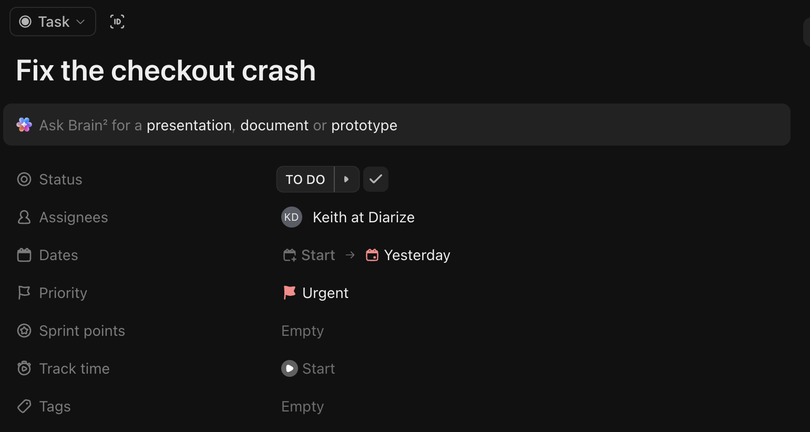
The best task data of any source here. ClickUp's estimate is a real field on the free plan, so you write nothing in titles.
What Diarized reads
- How long it takes
- ClickUp's own time estimate, read from the task. ClickUp is the only free source with this field.
- How urgent it is
- ClickUp's own priority — Urgent, High, Normal and Low.
- When it is due
- ClickUp's due date, read in your own time zone. The due date also decides which tasks Diarized schedules. Read the limit below.
- How to mark it done
- Close the task in ClickUp, or use the “Mark done” link in the block.
What gets scheduled
Work assigned to you that is due inside the scheduling window. ClickUp has no sprint or cycle for “now”, so the due date is the filter. The settings page has a switch to include undated tasks.
Worth doing
- If your team sets no due dates, turn on “include undated tasks”. Diarized schedules nothing without one of the two.
- If your workspace is large, limit the source to specific Lists on the settings page.
The one thing to know
ClickUp has no permission scopes, so a connection gives access to the whole workspace you pick. The consent screen shows a workspace picker and no permissions, because ClickUp has none to show. This is ClickUp's design and not our choice.
← All guides · Connect ClickUp · Everything Diarized supports